
Account
Two-factor authentication
Published 6 May 2026
Two-factor authentication (2FA) adds a second step to login — after your password, you confirm with a code from an authenticator app such as Authy, 1Password, or Google Authenticator.
Enabling 2FA
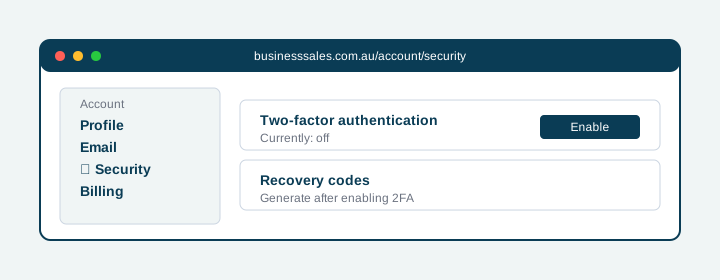
- Go to Account settings → Security.
- Click Enable two-factor authentication.
- Scan the QR code with your authenticator app, or copy the secret key into the app manually.
- Enter the 6-digit code your app shows you to confirm the setup.
- Save your recovery codes. You will be shown a one-time list of recovery codes — store them in a password manager or print them.
Why the recovery codes matter
The recovery codes are the only way to log in if your authenticator device is lost. Without them, recovery requires manual verification by the BusinessSales team and can take several business days. Treat them like a password.
Which actions prompt for 2FA
Once 2FA is enabled, the following actions prompt for the code in addition to your password:
- Changing your account email
- Deleting your account
- Transferring a listing to another seller
- Adding a new payment method
Routine actions like browsing, saving listings, or replying to enquiries do not prompt for a code — they rely on your existing login session.
Couldn't find your answer?
Tell us what happened and we'll reply by email.